Saturday, October 30, 2021

How To Generate Barcode In ASP.NET

 In this blog, we will learn how to generate a barcode using asp.net by simply entering numbers and alphabet letters in the textbox and clicking generate. (I have added a downloaded file in zip folder of the project.)

Step 1

Download the barcode font from the link given below:

https://www.idautomation.com/free-barcode-products/code39-font/

Step 2

Extract the zip file and install on your system. After installation, restart your system.

Step 3

Create an empty project in the Visual Studio version of your choice. Give it a meaningful name.

Step 4

Add web form right on the project from solution explorer, add new item, choose web form and give it a name of your choice.

Step 5

Add script and styles cdn link in head section of your web form.

  1. <link rel="stylesheet" href="https://maxcdn.bootstrapcdn.com/bootstrap/4.0.0/css/bootstrap.min.css">  
  2. <script src="https://ajax.googleapis.com/ajax/libs/jquery/3.3.1/jquery.min.js"></script>  
  3. <script src="https://maxcdn.bootstrapcdn.com/bootstrap/4.0.0/js/bootstrap.min.js"></script>  

Step 6 - Design HTML web form

Drag and drop TextBox , Button and PlaceHolder control:
  1. <body>  
  2.     <form id="form1" runat="server">  
  3.         <div class="container">  
  4.             <h3 class="text-center text-uppercase">How to create barcode in asp.net</h3>  
  5.             <div class="row">  
  6.                 <div class="form-group">  
  7.                     <label>Enter Number:</label>  
  8.                     <div class="input-group">  
  9.                         <asp:TextBox ID="txtBarcode" CssClass="form-control" runat="server"></asp:TextBox>  
  10.                         <div class="input-group-append">  
  11.                             <asp:Button ID="btnGenrate" CssClass="btn btn-outline-primary" runat="server" Text="Genrate" OnClick="btnGenrate_Click" />                             
  12.                         </div>  
  13.                     </div>  
  14.                 </div>                  
  15.             </div>  
  16.             <asp:PlaceHolder ID="PlaceHolder1" runat="server"></asp:PlaceHolder>  
  17.         </div>  
  18.     </form>  
  19. </body>  

Step 7

Double click or enter Button control.

Add namespace

using System;
using System.Drawing;
using System.IO;

Write the following code

  1. protected void btnGenrate_Click(object sender, EventArgs e)  
  2.         {  
  3.             string barCode = txtBarcode.Text;  
  4.             System.Web.UI.WebControls.Image imgBarCode = new System.Web.UI.WebControls.Image();  
  5.             using (Bitmap bitMap = new Bitmap(barCode.Length * 20, 80))  
  6.             {  
  7.                 using (Graphics graphics = Graphics.FromImage(bitMap))  
  8.                 {  
  9.                     Font oFont = new Font("IDAutomationHC39M", 16);  
  10.                     PointF point = new PointF(2f, 2f);  
  11.                     SolidBrush blackBrush = new SolidBrush(Color.Black);  
  12.                     SolidBrush whiteBrush = new SolidBrush(Color.White);  
  13.                     graphics.FillRectangle(whiteBrush, 0, 0, bitMap.Width, bitMap.Height);  
  14.                     graphics.DrawString("*" + barCode + "*", oFont, blackBrush, point);  
  15.                 }  
  16.                 using (MemoryStream ms = new MemoryStream())  
  17.                 {  
  18.                     bitMap.Save(ms, System.Drawing.Imaging.ImageFormat.Png);  
  19.                     byte[] byteImage = ms.ToArray();  
  20.   
  21.                     Convert.ToBase64String(byteImage);  
  22.                     imgBarCode.ImageUrl = "data:image/png;base64," + Convert.ToBase64String(byteImage);  
  23.                 }  
  24.                 PlaceHolder1.Controls.Add(imgBarCode);  
  25.             }  
  26.         }  

Step 8

Run project ctr+F5

Final output 

ASP.NET

Add Expiry Date to PDF Files in C#/VB.NET

 There is no concept of expiration date defined in the PDF specifications format, however, there is a workaround that we can apply expiration using JavaScript. Spire.PDF supports to add java script actions to PDF files as well. This article presents how to add a JavaScript expiration date to a PDF document using Spire.PDF in C# and VB.NET.

Step 1: Create an object of PdfDocument class and add a blank page to it.

PdfDocument doc = new PdfDocument();
doc.Pages.Add();

Step 2: Define the JavaScript code.

string javaScript = "var rightNow = new Date();"
                    + "var endDate = new Date('October 20, 2016 23:59:59');"
                    + "if(rightNow.getTime() > endDate)"
                    + "app.alert('This Document has expired, please contact us for a new one.',1);"
                    + "this.closeDoc();";

Step 3: Create a PdfJavaScriptAction object that performs the java script action in PDF document.

PdfJavaScriptAction js = new PdfJavaScriptAction(javaScript);

Step 4: Set the JavaScript as PDF open action.

doc.AfterOpenAction = js;

Step 5: Save the file.

doc.SaveToFile("ExpiryDate.pdf", FileFormat.PDF);

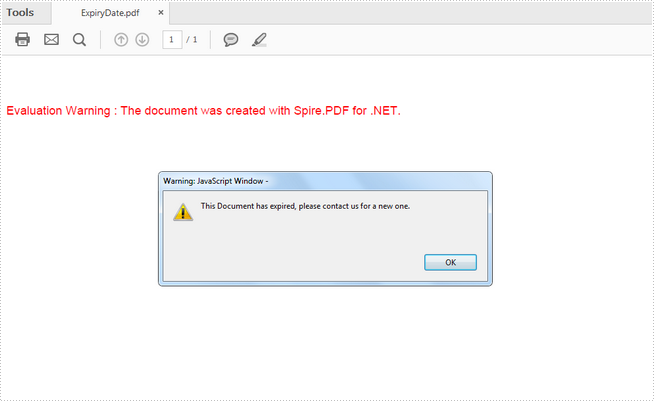
Output:

How to Add Expiry Date to PDF Files in C#, VB.NET

Full Code:

[C#]
using Spire.Pdf;
using Spire.Pdf.Actions;

namespace AddExpiryDate
{
    class Program
    {
        static void Main(string[] args)
        {
            PdfDocument doc = new PdfDocument();
            doc.Pages.Add();

            string javaScript = "var rightNow = new Date();"
                     + "var endDate = new Date('October 20, 2016 23:59:59');"
                     + "if(rightNow.getTime() > endDate)"
                     + "app.alert('This Document has expired, please contact us for a new one.',1);"
                     + "this.closeDoc();";
            PdfJavaScriptAction js = new PdfJavaScriptAction(javaScript);
            doc.AfterOpenAction = js;
            doc.SaveToFile("ExpiryDate.pdf", FileFormat.PDF);
        }
    }
}
[VB.NET]
Imports Spire.Pdf
Imports Spire.Pdf.Actions

Namespace AddExpiryDate
	Class Program
		Private Shared Sub Main(args As String())
			Dim doc As PdfDocument = New PdfDocument()
doc.Pages.Add()
 
String javaScript = "var rightNow = new Date();"
                    + "var endDate = new Date('October 20, 2016 23:59:59');"
                    + "if(rightNow.getTime() > endDate)"
                    + "app.alert('This Document has expired, please contact us for a new one.',1);"
                    Dim "this.closeDoc();" As +
Dim js As PdfJavaScriptAction = New PdfJavaScriptAction(javaScript)
doc.AfterOpenAction = js
doc.SaveToFile("ExpiryDate.pdf", FileFormat.PDF)
		End Sub
	End Class
End Namespace

Create Digital Signature in PDF in C#/VB.NET

 Digital signature is the alternative way of signing documents in era of electronic exchange of documents. Creating digital signature in PDF, without any doubt, becomes one of the most popular ways to protect PDF file from editing and tampering. This section will introduce a solution to create digital signature in PDF via a .NET PDF component.

Spire.PDF for .NET, with rich features to protect and manipulate PDF documents, allows you to keep your PDF secure by creating digital signature in PDF with C#, VB.NET. As long as the digital signature is signed, the signer's identity has been verified and your PDF document can be safe and cannot be modified.

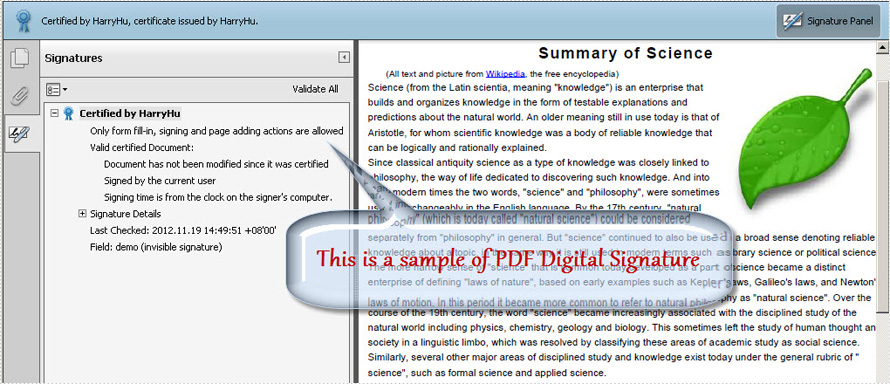
Please download Spire.PDF for .NET and view the screenshot of this task as below picture:

Create Digital Signature

In the key code, first you are required to create one instance of Spire.Pdf.Security.PdfCertificate class with two parameters passed: a certificate file and the file password. This instance is named to be digi. After that, digi is used as a parameter of another instance in a different class: PdfSignature class. Here it is called signature. In order to sign PDF digital signature in any page, a "page" parameter is provided. Through DocumentPermission, you can restrict the PDF permission to be AllowComments, AllowFormFill and ForbidChanges.

[C#]
using Spire.Pdf;
using Spire.Pdf.Security;

namespace CreateDigitalSignature
{
    class Program
    {
        static void Main(string[] args)
        {
            PdfDocument doc = new PdfDocument("Sample.pdf");
            PdfPageBase page = doc.Pages[0];

            PdfCertificate cert = new PdfCertificate("Demo.pfx", "e-iceblue");

            PdfSignature signature = new PdfSignature(doc, page, cert, "demo");

            signature.ContactInfo = "Harry";
            signature.Certificated = true;

            signature.DocumentPermissions = PdfCertificationFlags.AllowFormFill;

            doc.SaveToFile("Result.pdf");
        }
    }
}
[VB.NET]
Imports Spire.Pdf
Imports Spire.Pdf.Security

Namespace CreateDigitalSignature
	Class Program
		Private Shared Sub Main(args As String())
			Dim doc As PdfDocument = New PdfDocument("Sample.pdf")
    Dim page As PdfPageBase = doc.Pages(0)
    Dim cert As PdfCertificate = New PdfCertificate("Demo.pfx", "e-iceblue")
    Dim signature As PdfSignature = New PdfSignature(doc, page, cert, "demo")
    signature.ContactInfo = "Harry"
    signature.Certificated = True
    signature.DocumentPermissions = PdfCertificationFlags.AllowFormFill
    doc.SaveToFile("Result.pdf")
		End Sub
	End Class
End Namespace

Spire.PDF for .NET is a .NET PDF component which can secure your PDF by encrypting PDF and creating PDF digital signature. When you need to unlock PDF file, it also enables you to decrypt PDF in a fast way.

Create Visible Digital Signature in PDF in C#

 Digital Signature is widely used to protect the PDF files and it is so important that we always try our best to improve our Spire.PDF better and better. Besides the previous method of creating digital signature in PDF, Spire.PDF now supports to create visible digital signature in PDF with C# code.

Make sure Spire.PDF for .NET (version 2.9 or above) has been installed correctly. Add Spire.PDF.dll as reference in the downloaded Bin folder through the below path: "...\Spire.PDF\Bin\NET4.0\ Spire.PDF.dll".

01using Spire.Pdf;
02using Spire.Pdf.Graphics;
03using Spire.Pdf.Security;
04using System;
05using System.Drawing;
06 
07namespace DigitalSignature
08{
09    class Program
10    {
11        static void Main(string[] args)
12        {
13            //load a pdf document
14            PdfDocument doc = new PdfDocument();
15            doc.LoadFromFile(@"C:\Users\Administrator\Desktop\test.pdf");
16 
17            //load the certificate
18            PdfCertificate cert = new PdfCertificate(@"C:\Users\Administrator\Desktop\gary.pfx""e-iceblue");
19 
20            //initialize a PdfSignature instance
21            PdfSignature signature = new PdfSignature(doc, doc.Pages[0], cert, "Signature1");
22 
23            //set the signature location
24            signature.Bounds = new RectangleF(new PointF(200, 200), new SizeF(200, 90));
25 
26            //set the image of signature
27            signature.SignImageSource = PdfImage.FromFile(@"C:\Users\Administrator\Desktop\E-iceblueLogo.png");
28 
29            //set the content of signature
30            signature.GraphicsMode = GraphicMode.SignImageAndSignDetail;
31            signature.NameLabel = "Signer:";
32            signature.Name = "Gary";
33            signature.ContactInfoLabel = "ContactInfo:";
34            signature.ContactInfo = signature.Certificate.GetNameInfo(System.Security.Cryptography.X509Certificates.X509NameType.SimpleName, true);
35            signature.DistinguishedNameLabel = "DN: ";
36            signature.DistinguishedName = signature.Certificate.IssuerName.Name;
37            signature.LocationInfoLabel = "Location:";
38            signature.LocationInfo = "Chengdu";
39            signature.ReasonLabel = "Reason: ";
40            signature.Reason = "Le document est certifie";
41            signature.DateLabel = "Date:";
42            signature.Date = DateTime.Now;
43            signature.DocumentPermissions = PdfCertificationFlags.AllowFormFill | PdfCertificationFlags.ForbidChanges;
44            signature.Certificated = true;
45 
46            //set fonts
47            signature.SignDetailsFont = new PdfFont(PdfFontFamily.TimesRoman, 10f);
48            signature.SignNameFont = new PdfFont(PdfFontFamily.Courier, 15);
49 
50            //set the sign image layout mode
51            signature.SignImageLayout = SignImageLayout.None;
52 
53            //save the file
54            doc.SaveToFile("signature.pdf");
55        }
56    }
57}

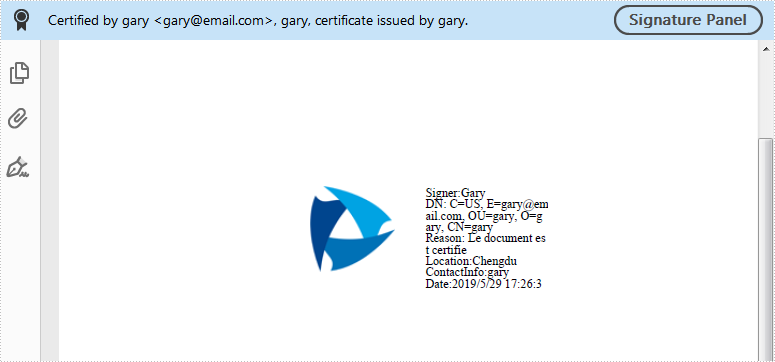
Create visible digital signature

No String Argument Constructor/Factory Method to Deserialize From String Value

  In this short article, we will cover in-depth the   JsonMappingException: no String-argument constructor/factory method to deserialize fro...