Saturday, October 30, 2021

How To Generate QR Code Using ASP.NET

 This blog will demonstrate how to generate QR code using ASP.NET.

Step 1

Create an empty web project in the Visual Studio version of your choice.

Step 2

Add Web Form, right-click on the project, select Add New Item, choose web form, give it a name and click on Add.

Step 3

Add script and styles in web form head section.

  1. <link rel="stylesheet" href="https://maxcdn.bootstrapcdn.com/bootstrap/4.0.0/css/bootstrap.min.css">  
  2. <script src="https://ajax.googleapis.com/ajax/libs/jquery/3.3.1/jquery.min.js"></script>  
  3. <script src="https://maxcdn.bootstrapcdn.com/bootstrap/4.0.0/js/bootstrap.min.js"></script>  

Step 4

Design web form by dragging and dropping textbox control, button control, and placeholder control. Apply bootstrap 4 class to textbox and button.

  1. <!DOCTYPE html>  
  2.   
  3. <html>  
  4. <head runat="server">  
  5.     <title>QR Generate</title>  
  6.     <link rel="stylesheet" href="https://maxcdn.bootstrapcdn.com/bootstrap/4.0.0/css/bootstrap.min.css">  
  7.     <script src="https://ajax.googleapis.com/ajax/libs/jquery/3.3.1/jquery.min.js"></script>  
  8.     <script src="https://maxcdn.bootstrapcdn.com/bootstrap/4.0.0/js/bootstrap.min.js"></script>  
  9. </head>  
  10. <body>  
  11.     <form id="form1" runat="server">  
  12.         <div class="container">  
  13.             <h2>How to Generate QR Code in ASP.NET</h2>  
  14.             <div class="row">  
  15.                 <div class="col-md-4">  
  16.                     <div class="form-group">  
  17.                         <label>Enter Something</label>  
  18.                         <div class="input-group">  
  19.                             <asp:TextBox ID="txtQRCode" runat="server" CssClass="form-control"></asp:TextBox>  
  20.                             <div class="input-group-prepend">  
  21.                                 <asp:Button ID="btnGenerate" runat="server" CssClass="btn btn-secondary" Text="Generate" OnClick="btnGenerate_Click" />  
  22.                             </div>  
  23.                         </div>  
  24.                     </div>  
  25.                 </div>  
  26.             </div>  
  27.             <asp:PlaceHolder ID="PlaceHolder1" runat="server"></asp:PlaceHolder>  
  28.         </div>  
  29.     </form>  
  30. </body>  
  31. </html>  

Step 5

Double-click on the Generate button control and write the following C# code.

  1. using System;  
  2. using System.Drawing;  
  3. using System.IO;  
  4. using QRCoder;  
  5.   
  6. namespace QRCode_Demo  
  7. {  
  8.     public partial class QRCode : System.Web.UI.Page  
  9.     {  
  10.         protected void Page_Load(object sender, EventArgs e)  
  11.         {  
  12.   
  13.         }  
  14.   
  15.         protected void btnGenerate_Click(object sender, EventArgs e)  
  16.         {  
  17.             string code =txtQRCode.Text;  
  18.             QRCodeGenerator qrGenerator = new QRCodeGenerator();  
  19.             QRCodeGenerator.QRCode qrCode = qrGenerator.CreateQrCode(code, QRCodeGenerator.ECCLevel.Q);  
  20.             System.Web.UI.WebControls.Image imgBarCode = new System.Web.UI.WebControls.Image();  
  21.             imgBarCode.Height = 150;  
  22.             imgBarCode.Width = 150;  
  23.             using (Bitmap bitMap = qrCode.GetGraphic(20))  
  24.             {  
  25.                 using (MemoryStream ms = new MemoryStream())  
  26.                 {  
  27.                     bitMap.Save(ms, System.Drawing.Imaging.ImageFormat.Png);  
  28.                     byte[] byteImage = ms.ToArray();  
  29.                     imgBarCode.ImageUrl = "data:image/png;base64," + Convert.ToBase64String(byteImage);  
  30.                 }  
  31.               PlaceHolder1.Controls.Add(imgBarCode);  
  32.             }  
  33.         }  
  34.     }  
  35. }  

Step 6

Run the project by pressing Ctrl + F5.

Final output

Output

Dynamically Generate and Display Barcode Image in ASP.Net

 In this article I will explain with an example, how to dynamically generate and display Barcode Image in ASP.Net using C# and VB.Net.

The Barcode Image will be generated using the IDAutomationHC39M Free Version Barcode Font in ASP.Net using C# and VB.Net.
Note: The IDAutomationHC39M Free Version Barcode Font is provided by IDAutomation and they are the creators and owners of the Font and its license.
 
 
Downloading and installing Barcode Font
First you will need to download the Free Barcode Font from the following link.
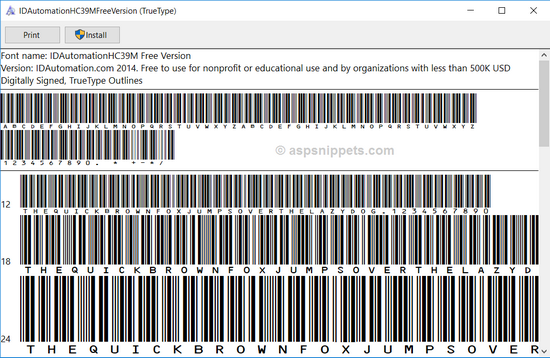
Once downloaded follow the following steps.
1. Extract the Font from the ZIP file.
2. Double Click, Open the File and then click the Install Button as shown below.
Dynamically generate and display Barcode Image in ASP.Net
 
3. After installation is completed, restart your machine.
HTML Markup
The HTML Markup consists of an ASP.Net TextBox, a Button and an Image control.
The barcode entered in the TextBox will be converted to an Image Barcode and then later displayed in the Image control.
<asp:TextBox ID="txtBarcode" runat="server"></asp:TextBox>
<asp:Button ID="btnGenerate" runat="server" Text="Generate" OnClick="GenerateBarcode" />
<hr />
<asp:Image ID="imgBarcode" runat="server" Visible="false" />
 
 
Namespaces
You will need to import the following namespaces.
C#
using System.IO;
using System.Drawing;
using System.Drawing.Imaging;
 
VB.Net
Imports System.IO
Imports System.Drawing
Imports System.Drawing.Imaging
 
 
Dynamically generating and displaying Barcode Image in ASP.Net
Inside the GenerateBarcode event handler, first a Bitmap Image is created and then using the Free Barcode Font, the Barcode Graphics is drawn on the Bitmap Image.
Then the Bitmap Image saved into MemoryStream object and then it is converted into a BASE64 string and assigned to the Image control.
Finally, the Image control is made visible by setting the Visible property to True.
C#
protected void GenerateBarcode(object sender, EventArgs e)
{
    string barCode = txtBarcode.Text;
    using (Bitmap bitMap = new Bitmap(barCode.Length * 40, 80))
    {
        using (Graphics graphics = Graphics.FromImage(bitMap))
        {
            Font oFont = new Font("IDAutomationHC39M Free Version", 16);
            PointF point = new PointF(2f, 2f);
            SolidBrush blackBrush = new SolidBrush(Color.Black);
            SolidBrush whiteBrush = new SolidBrush(Color.White);
            graphics.FillRectangle(whiteBrush, 0, 0, bitMap.Width, bitMap.Height);
            graphics.DrawString("*" + barCode + "*", oFont, blackBrush, point);
        }
        using (MemoryStream ms = new MemoryStream())
        {
            bitMap.Save(ms, ImageFormat.Png);
            imgBarcode.ImageUrl = "data:image/png;base64," + Convert.ToBase64String(ms.ToArray());
            imgBarcode.Visible = true;
        }
    }
}
 
VB.Net
Protected Sub GenerateBarcode(sender As Object, e As EventArgs)
    Dim barCode As String = txtBarcode.Text
    Using bitMap As New Bitmap(barCode.Length * 40, 80)
        Using graphics__1 As Graphics = Graphics.FromImage(bitMap)
            Dim oFont As New Font("IDAutomationHC39M Free Version", 16)
            Dim point As New PointF(2.0F, 2.0F)
            Dim blackBrush As New SolidBrush(Color.Black)
            Dim whiteBrush As New SolidBrush(Color.White)
            graphics__1.FillRectangle(whiteBrush, 0, 0, bitMap.Width, bitMap.Height)
            graphics__1.DrawString("*" & barCode & "*", oFont, blackBrush, point)
        End Using
        Using ms As New MemoryStream()
            bitMap.Save(ms, ImageFormat.Png)
            imgBarcode.ImageUrl = "data:image/png;base64," & Convert.ToBase64String(ms.ToArray())
            imgBarcode.Visible = True
        End Using
    End Using
End Sub
 
 
Screenshot


How To Generate Barcode In ASP.NET

 In this blog, we will learn how to generate a barcode using asp.net by simply entering numbers and alphabet letters in the textbox and clicking generate. (I have added a downloaded file in zip folder of the project.)

Step 1

Download the barcode font from the link given below:

https://www.idautomation.com/free-barcode-products/code39-font/

Step 2

Extract the zip file and install on your system. After installation, restart your system.

Step 3

Create an empty project in the Visual Studio version of your choice. Give it a meaningful name.

Step 4

Add web form right on the project from solution explorer, add new item, choose web form and give it a name of your choice.

Step 5

Add script and styles cdn link in head section of your web form.

  1. <link rel="stylesheet" href="https://maxcdn.bootstrapcdn.com/bootstrap/4.0.0/css/bootstrap.min.css">  
  2. <script src="https://ajax.googleapis.com/ajax/libs/jquery/3.3.1/jquery.min.js"></script>  
  3. <script src="https://maxcdn.bootstrapcdn.com/bootstrap/4.0.0/js/bootstrap.min.js"></script>  

Step 6 - Design HTML web form

Drag and drop TextBox , Button and PlaceHolder control:
  1. <body>  
  2.     <form id="form1" runat="server">  
  3.         <div class="container">  
  4.             <h3 class="text-center text-uppercase">How to create barcode in asp.net</h3>  
  5.             <div class="row">  
  6.                 <div class="form-group">  
  7.                     <label>Enter Number:</label>  
  8.                     <div class="input-group">  
  9.                         <asp:TextBox ID="txtBarcode" CssClass="form-control" runat="server"></asp:TextBox>  
  10.                         <div class="input-group-append">  
  11.                             <asp:Button ID="btnGenrate" CssClass="btn btn-outline-primary" runat="server" Text="Genrate" OnClick="btnGenrate_Click" />                             
  12.                         </div>  
  13.                     </div>  
  14.                 </div>                  
  15.             </div>  
  16.             <asp:PlaceHolder ID="PlaceHolder1" runat="server"></asp:PlaceHolder>  
  17.         </div>  
  18.     </form>  
  19. </body>  

Step 7

Double click or enter Button control.

Add namespace

using System;
using System.Drawing;
using System.IO;

Write the following code

  1. protected void btnGenrate_Click(object sender, EventArgs e)  
  2.         {  
  3.             string barCode = txtBarcode.Text;  
  4.             System.Web.UI.WebControls.Image imgBarCode = new System.Web.UI.WebControls.Image();  
  5.             using (Bitmap bitMap = new Bitmap(barCode.Length * 20, 80))  
  6.             {  
  7.                 using (Graphics graphics = Graphics.FromImage(bitMap))  
  8.                 {  
  9.                     Font oFont = new Font("IDAutomationHC39M", 16);  
  10.                     PointF point = new PointF(2f, 2f);  
  11.                     SolidBrush blackBrush = new SolidBrush(Color.Black);  
  12.                     SolidBrush whiteBrush = new SolidBrush(Color.White);  
  13.                     graphics.FillRectangle(whiteBrush, 0, 0, bitMap.Width, bitMap.Height);  
  14.                     graphics.DrawString("*" + barCode + "*", oFont, blackBrush, point);  
  15.                 }  
  16.                 using (MemoryStream ms = new MemoryStream())  
  17.                 {  
  18.                     bitMap.Save(ms, System.Drawing.Imaging.ImageFormat.Png);  
  19.                     byte[] byteImage = ms.ToArray();  
  20.   
  21.                     Convert.ToBase64String(byteImage);  
  22.                     imgBarCode.ImageUrl = "data:image/png;base64," + Convert.ToBase64String(byteImage);  
  23.                 }  
  24.                 PlaceHolder1.Controls.Add(imgBarCode);  
  25.             }  
  26.         }  

Step 8

Run project ctr+F5

Final output 

ASP.NET

No String Argument Constructor/Factory Method to Deserialize From String Value

  In this short article, we will cover in-depth the   JsonMappingException: no String-argument constructor/factory method to deserialize fro...